5 Reasons Why You Need a Table View in Your Task Management Tool
Explore the key reasons why incorporating a table view into your task management tool can improve productivity, collaboration, and overall project success.
In any task management tool, choosing the right view can significantly impact how efficiently you and your team work. One of the most effective ways to organize and track tasks is through a table view. This feature displays tasks in a structured format, making it easier to manage deadlines, track progress, and assign responsibilities.
A table view offers a clear overview of all your tasks, allowing you to see key details like due dates, priorities, and assignees in one place. For teams working on multiple projects, having this level of organization helps streamline workflows and improve communication.
In this article, we’ll explore the key reasons why incorporating a table view into your task management tool can improve productivity, collaboration, and overall project success.
What is Table View in Task Management Tools?
A table view in a task management tool is a structured, grid-like layout that allows you to organize tasks, deadlines, priorities, and team assignments in rows and columns. Unlike traditional lists or more visual views like Kanban boards, a table view focuses on presenting data in a way that’s easy to scan and compare.
This format allows teams to see all their tasks in one place, with each task’s details clearly displayed in different columns. You can quickly filter, sort, and update information based on what’s most important, such as task deadlines, current progress, or the person responsible for each task. For example, a table view might display columns for task name, due date, priority level, assignee, and status.
A qualitative study found that users rely on table‑based layouts to make sense of complex information and to interact directly with underlying data rather than just view visual summaries (Bartram, Correll & Tory, 2021)
By presenting tasks in a clear, organized way, table views enable teams to track multiple projects at once without missing critical details.
What Does Table View Look Like?
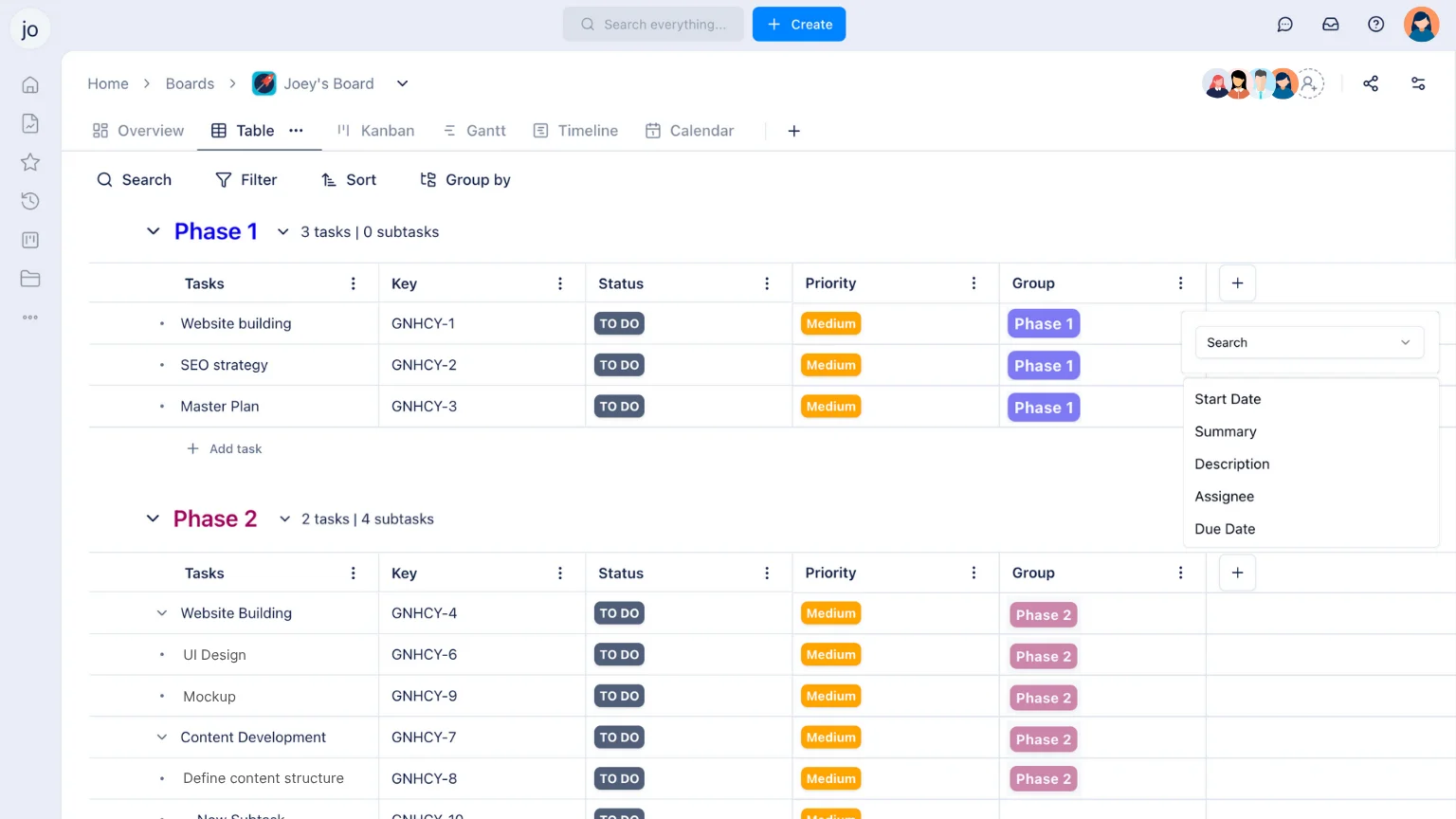
In a task management tool, a table view typically consists of a grid made up of rows and columns, each representing specific task details. The rows are usually dedicated to individual tasks, while the columns contain different attributes of each task.
For example, columns might include:
- Task Name: A brief description of the task.
- Priority: A level of urgency, such as high, medium, or low.
- Due Date: The deadline for completing the task.
- Assignee: The team member responsible for the task.
- Status: The current state of the task (e.g., “Not Started,” “In Progress,” “Completed”).
Each task is represented by a row, and within that row, the details of the task are organized into the appropriate columns. You can often sort and filter this information to get a quick overview or focus on specific tasks that need attention.
Additionally, some task management tools allow customization of the table, enabling you to add or remove columns based on the data that’s most relevant to your project. This flexible structure makes it easy to adapt the table view to different workflows and project types.
Why Do You Need a Table View in Task Management Tools?
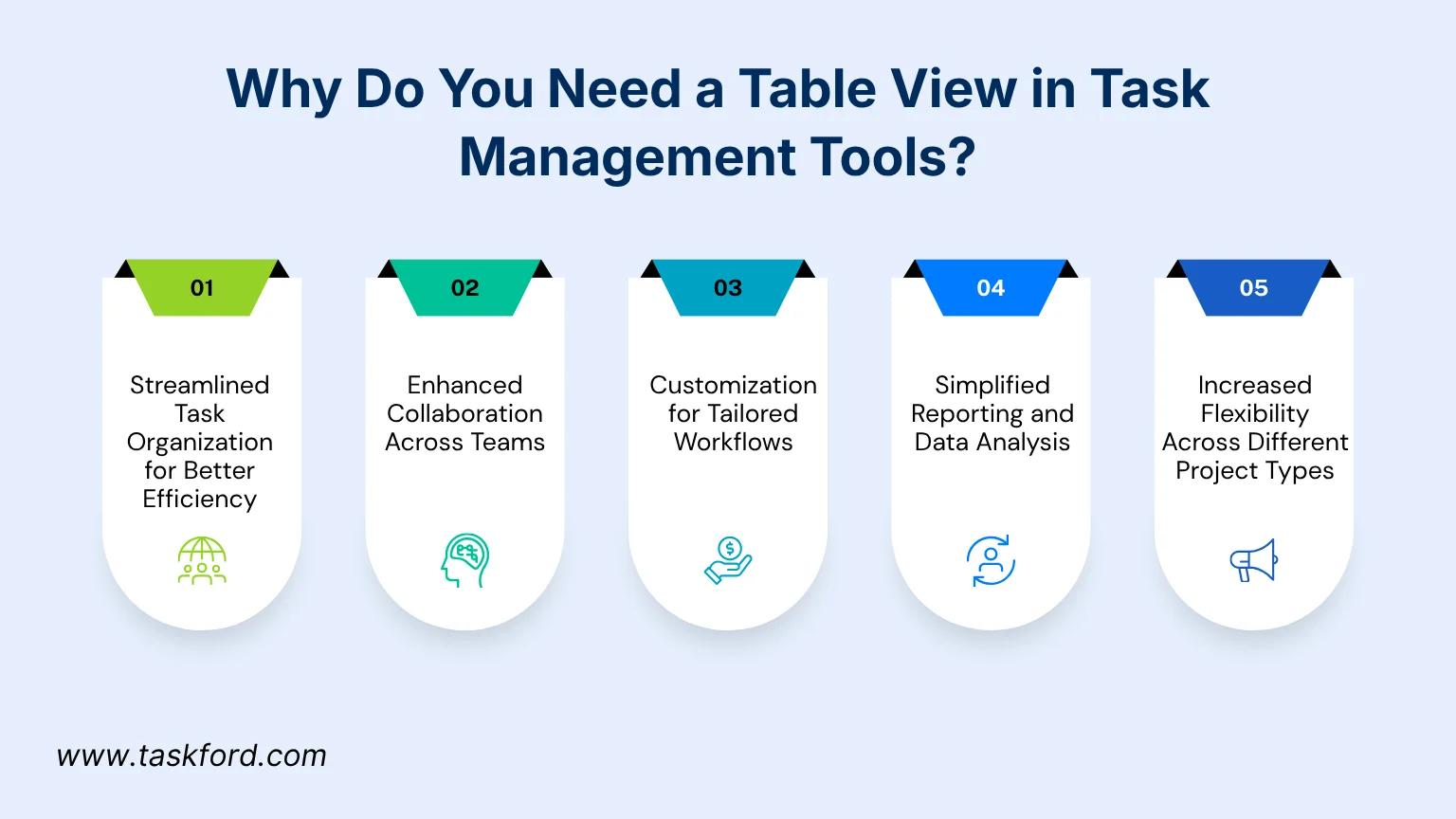
A table view is a highly effective tool for organizing and managing tasks in a way that enhances productivity and clarity. Here are several key reasons why you should consider using a table view in your task management tool:
1. Streamlined Task Organization for Better Efficiency
A table view allows you to organize tasks in a clear, structured way, making it easy to manage even large project workloads. With the ability to quickly sort tasks by priority, due date, or assignee, you can easily identify which tasks need attention first and which can be postponed. This level of organization helps prevent confusion and ensures that important deadlines are never missed. By having all the essential information in one place, your team can stay on track and work more efficiently.
2. Enhanced Collaboration Across Teams
Table views make it easy for team members to see who is responsible for each task and where each task stands. With columns dedicated to assignees, status, and due dates, everyone can quickly understand the current workload and progress of each team member. This visibility promotes better collaboration, as team members are always aware of who’s working on what and can offer help or resources when needed. Real-time updates in table view also ensure that everyone stays aligned, reducing miscommunication and improving overall team coordination.
3. Customization for Tailored Workflows
One of the biggest advantages of table view is its flexibility. You can customize it to fit your team’s specific workflow. Whether you need to track tasks based on specific categories, assign priority levels, or monitor different stages of progress, table view allows you to tailor the columns and data to suit your project needs. Customization helps teams focus on what matters most, improving their ability to prioritize tasks and adapt quickly to changing project requirements. This level of flexibility ensures that your task management tool works the way you need it to, not the other way around.
4. Simplified Reporting and Data Analysis
Table views also make it easier to analyze project data. With all tasks displayed in an organized grid, you can quickly generate reports, track task completion rates, or identify any bottlenecks in the workflow. Filtering and sorting options allow you to view specific sets of data, such as overdue tasks or tasks assigned to a particular team member. This simplified reporting process helps project managers make informed decisions and take proactive steps to address any issues before they escalate.
5. Increased Flexibility Across Different Project Types
Whether you’re managing a small team, a large project, or a cross-functional team with varying needs, a table view is flexible enough to adapt to different types of projects. It works equally well for software development, marketing campaigns, event planning, or customer support teams. Because of its adaptable structure, you can use table view to manage projects of any size, with varying complexities and workflows. This flexibility allows teams to maintain organized task tracking, regardless of the project’s scope or team structure.
Taskford Table View: Your Go-To Solution for Streamlined Task Management
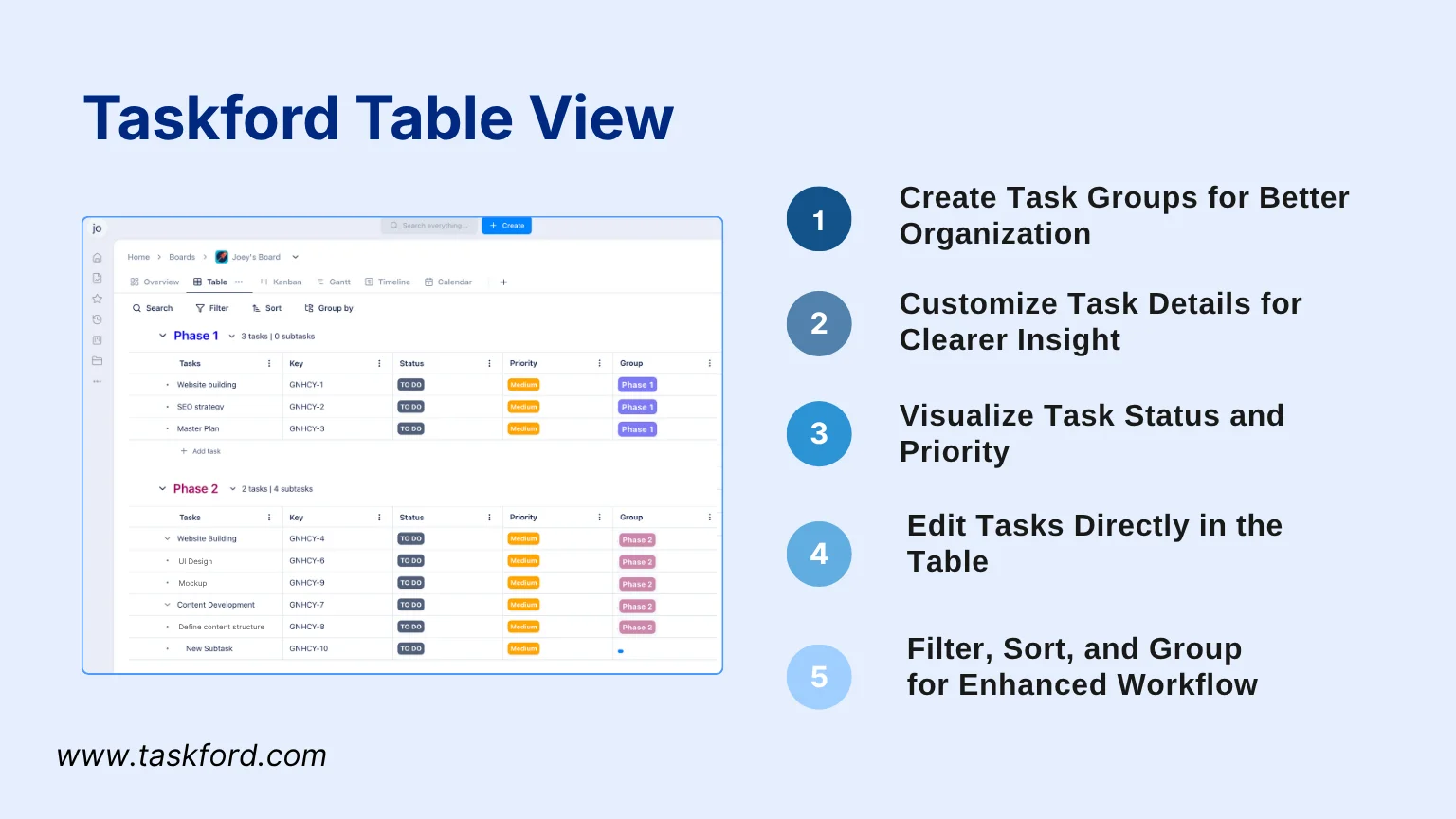
TaskFord’s Table View gives you full control over how tasks are organized, tracked, and managed in a clean, customizable grid. Whether you’re handling a single project or coordinating work across multiple teams, it makes it easy to sort, filter, and update tasks in real time.
1. Create Task Groups for Better Organization
With Taskford’s Table View, you can easily create groups of tasks to categorize and manage them by project, priority, or department. This feature allows you to organize tasks in a way that makes sense for your workflow. You can group tasks by specific criteria, helping you maintain focus and clarity as your project progresses. Whether it’s marketing campaigns, development sprints, or client deliverables, grouping tasks enables teams to quickly navigate and track progress.
2. Customize Task Details for Clearer Insight
One of the standout features of Taskford’s Table View is the ability to fully customize how tasks are displayed. You can choose from a variety of columns such as task name, assignee, due date, status, priority, and more, allowing you to tailor the table to your specific needs. Need to track additional details? You can easily add custom fields to display any other information relevant to your tasks. Whether it’s tracking budget, project phase, or internal notes, Taskford’s flexibility ensures your table view reflects the unique needs of your projects.
3. Visualize Task Status and Priority
Managing priorities and tracking task progress becomes a lot simpler with Taskford’s Table View. Each task can be displayed alongside its status (e.g., “Not Started,” “In Progress,” or “Completed”) and priority level, so your team knows exactly where they need to focus their efforts. This visual layout makes it easy to see which tasks are critical, which are due soon, and which are already completed—all at a glance.
4. Edit Tasks Directly in the Table
Another key advantage of Taskford’s Table View is the ability to create and edit tasks directly within the table. You don’t need to open separate screens or windows to add new tasks, change deadlines, or reassign responsibilities. With just a few clicks, you can quickly update task details or add new ones, streamlining the task management process and saving valuable time.
5. Filter, Sort, and Group for Enhanced Workflow
Taskford’s Table View makes it incredibly easy to filter, sort, and group tasks based on specific criteria. Want to view only high-priority tasks? Simply apply a filter to show only the tasks marked as high priority. Looking for tasks that are overdue? Sort tasks by due date, or filter out completed ones. You can even group tasks based on specific criteria, such as team members or deadlines, helping you prioritize and focus on the most important tasks first.
Conclusion
Incorporating a table view into your task management tool offers clear advantages when it comes to organizing, tracking, and collaborating on tasks. It provides a structured, flexible way to display critical task details such as deadlines, priorities, and assignees, making it easier to manage large projects or multiple workflows. With features like customizable columns, task grouping, real-time updates, and intuitive sorting and filtering options, table views enhance team efficiency and streamline communication.
For teams looking to boost productivity and keep tasks organized, TaskFord is the go-to solution. Its user-friendly interface, combined with powerful customization options, empowers teams to stay on top of their work while ensuring that no detail is overlooked. Whether you’re managing small tasks or complex projects, Taskford’s Table View helps ensure that your team works smarter, not harder, driving project success with ease.
Subscribe for Expert Tips
Unlock expert insights and stay ahead with TaskFord. Sign up now to receive valuable tips, strategies, and updates directly in your inbox.